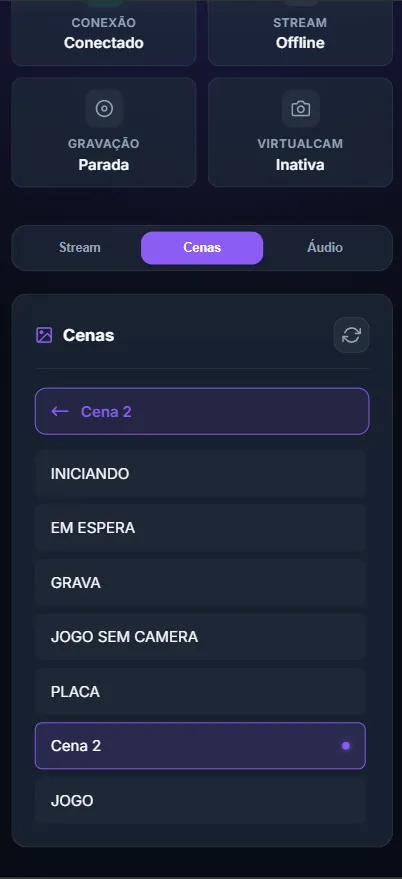
OBS Remote Control
OBS Remote Control is an essential Bearry feature designed to let you control your OBS Studio directly through your mobile phone.
The main goal of this tool is to facilitate and improve your stream flow, offering more freedom and agility during broadcasts. With it, you don’t need to interrupt what you are doing on the computer to make quick adjustments.
Why use OBS Remote Control?
Section titled “Why use OBS Remote Control?”- Ease of Access: Keep the most important commands in the palm of your hand.
- Improved Flow: Switch scenes, start or stop streaming, and control audio sources without minimizing your games or applications.
- Practicality: Ideal for those with a single monitor or who want to avoid excessive use of keyboard shortcuts.
Leverage the power of remote control to make your lives more dynamic and professional.
Configuring OBS Studio
Section titled “Configuring OBS Studio”For Bearry to communicate with OBS, the WebSocket server must be configured. Follow the steps below:
-
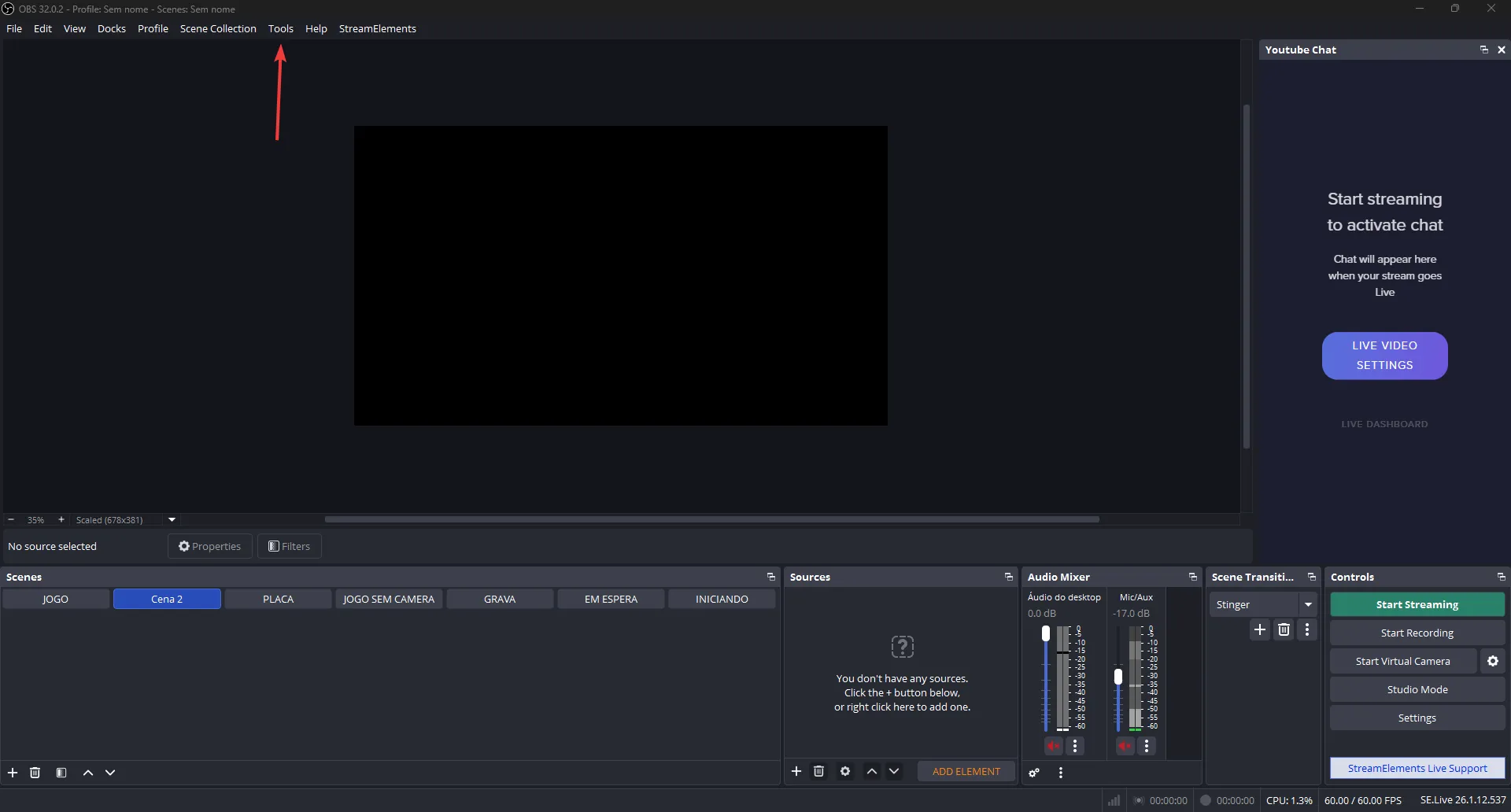
In OBS Studio, go to the top menu and click on Tools.
-
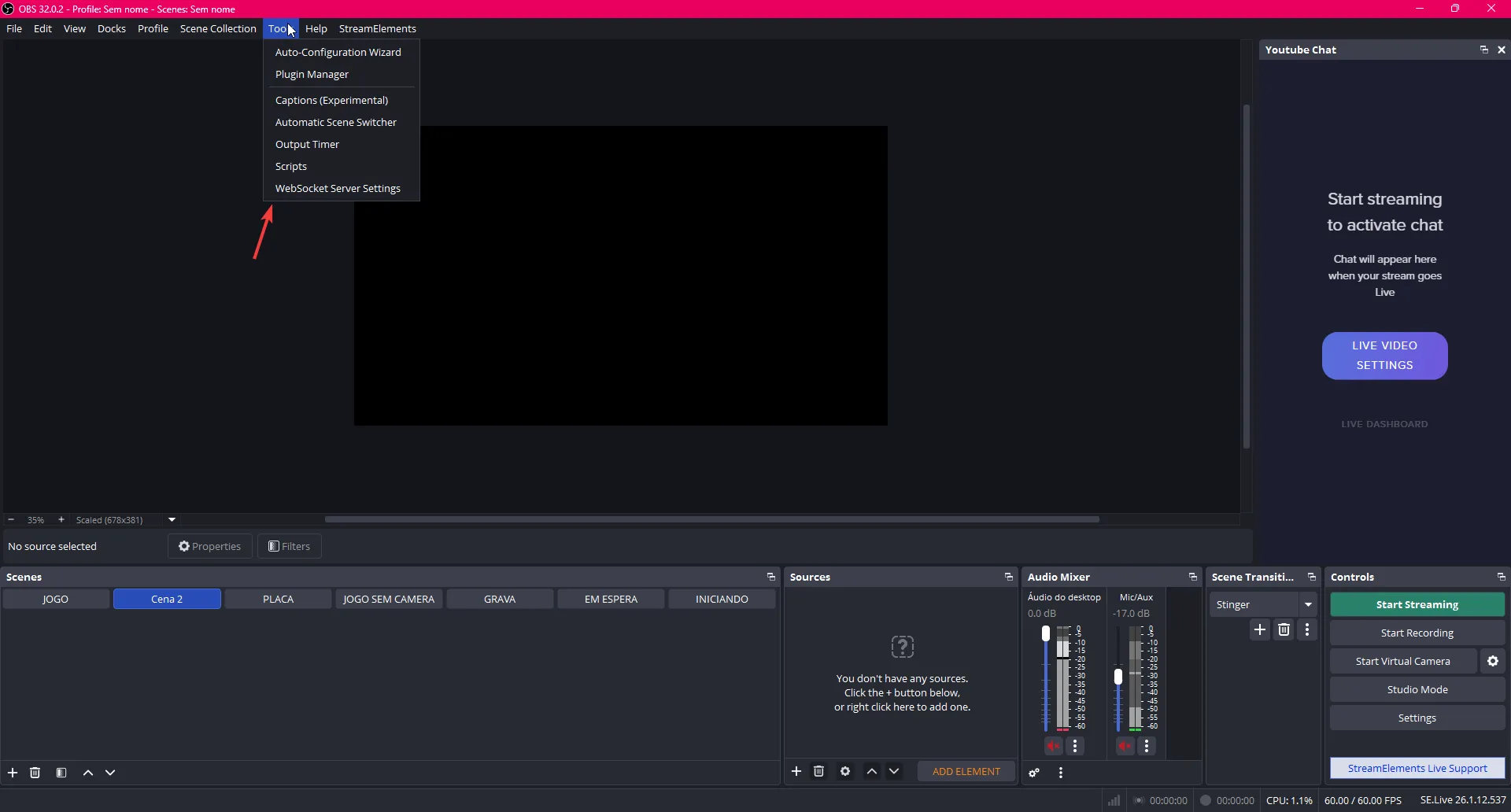
Select WebSocket Server Settings.
-
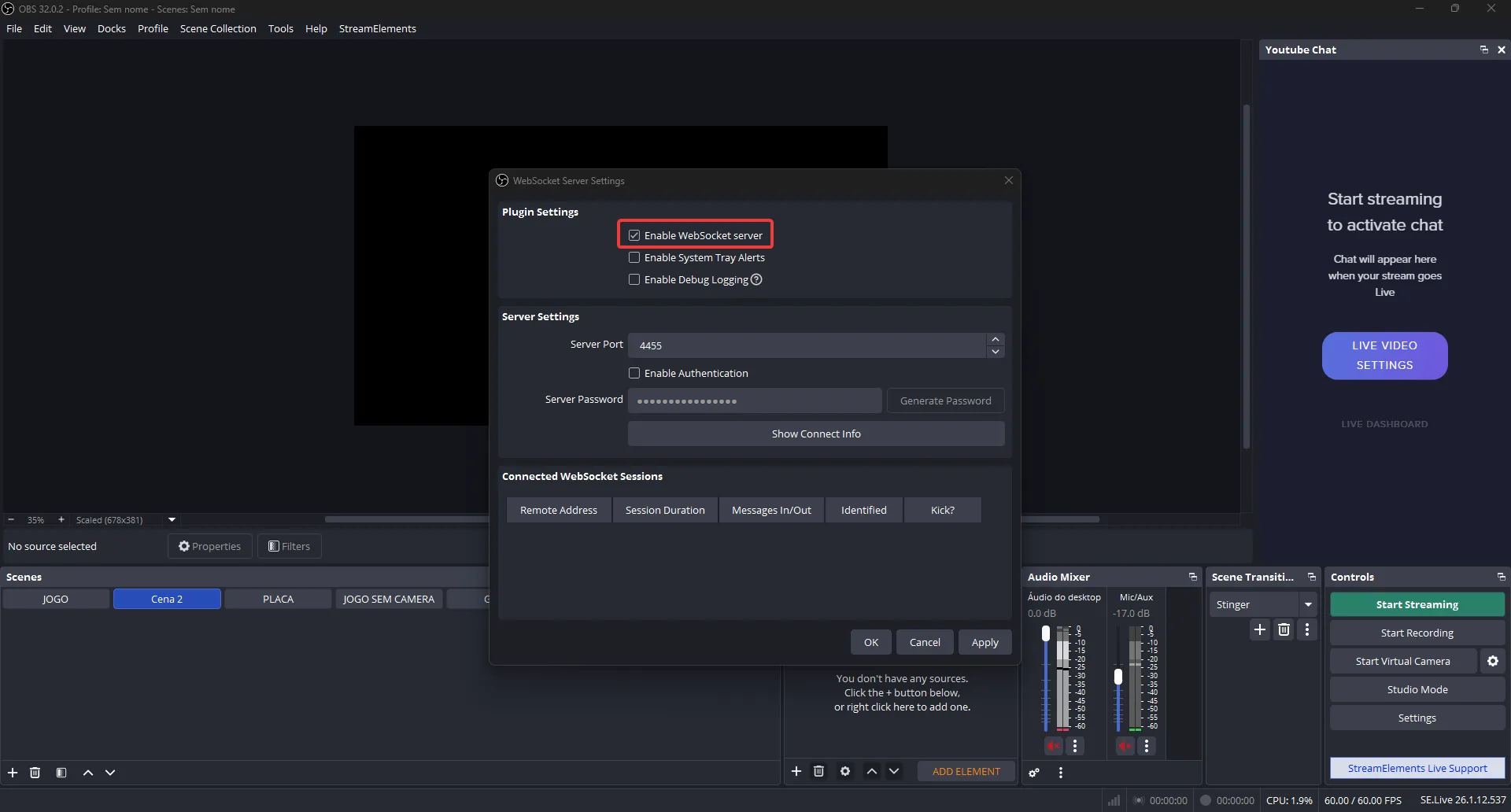
Enable the WebSocket server and set a password (optional, but recommended). Note down the port number and password, as you will need them in Bearry.
Configuring Bearry
Section titled “Configuring Bearry”Now let’s connect Bearry to your OBS. Follow the visual guide below:
-
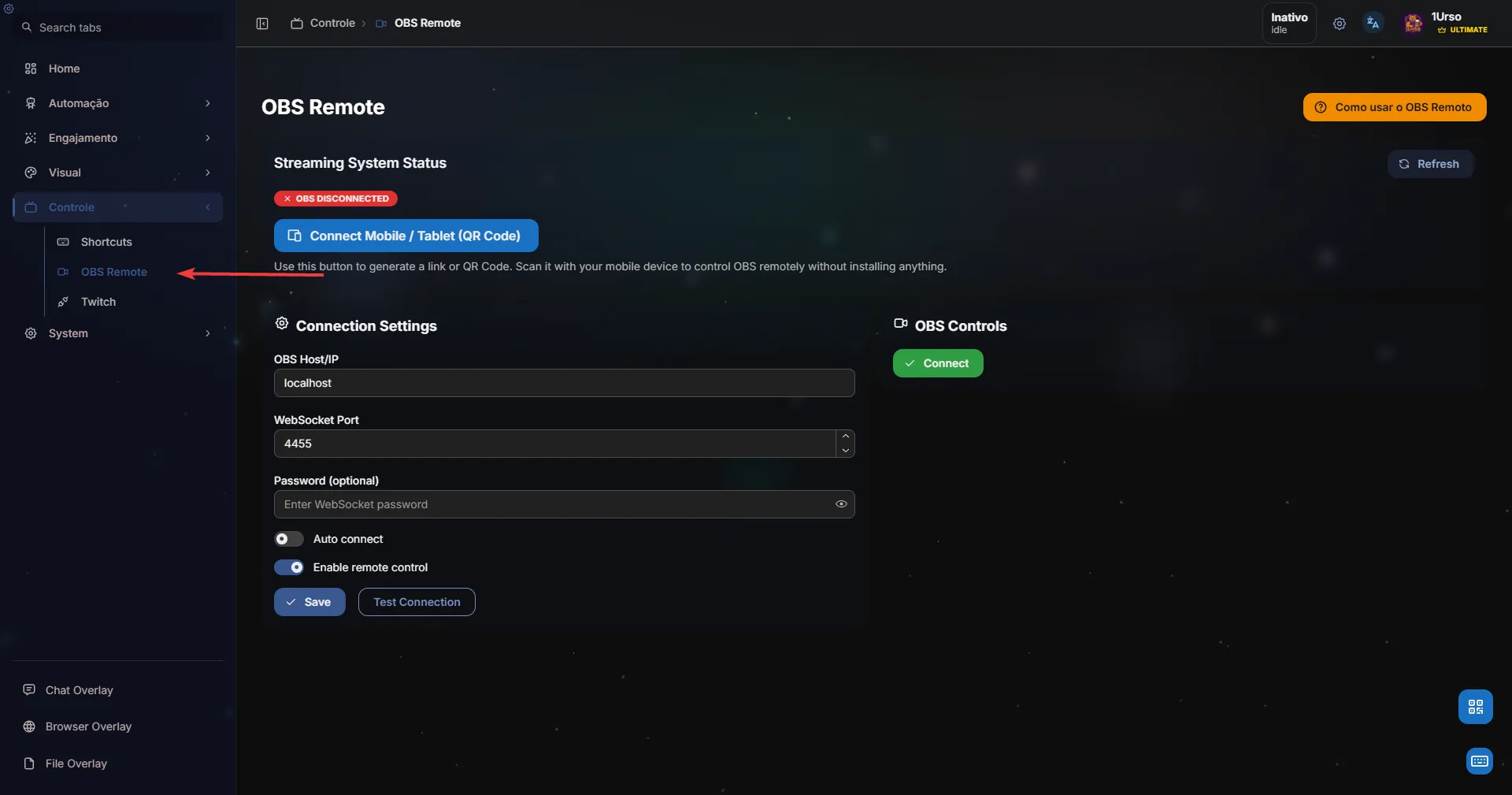
Open Bearry and locate the OBS Remote feature.
-
Fill in the fields with the data you configured in OBS. If Bearry is running on the same computer as OBS, keep HOST/IP as
localhost.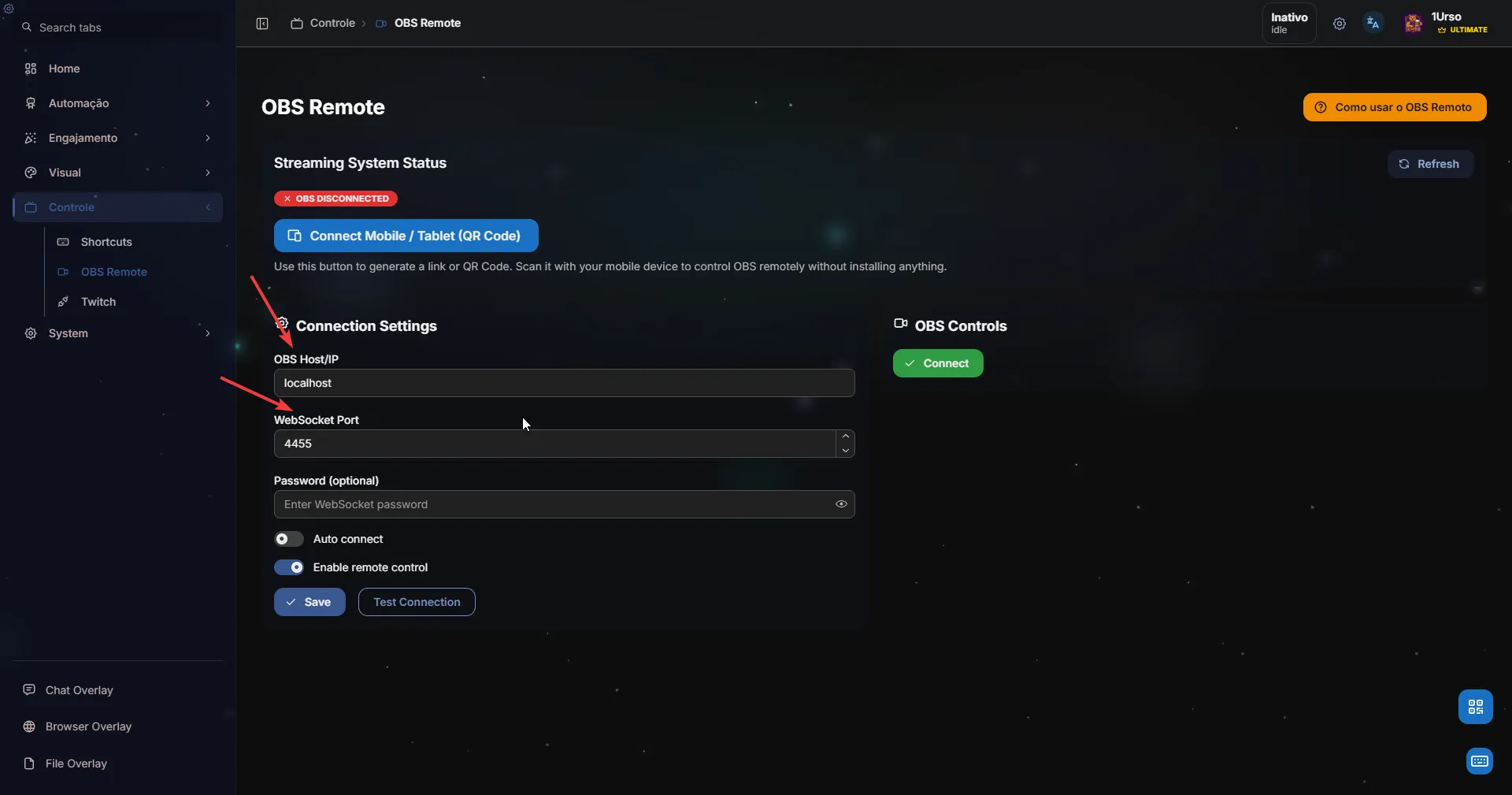
-
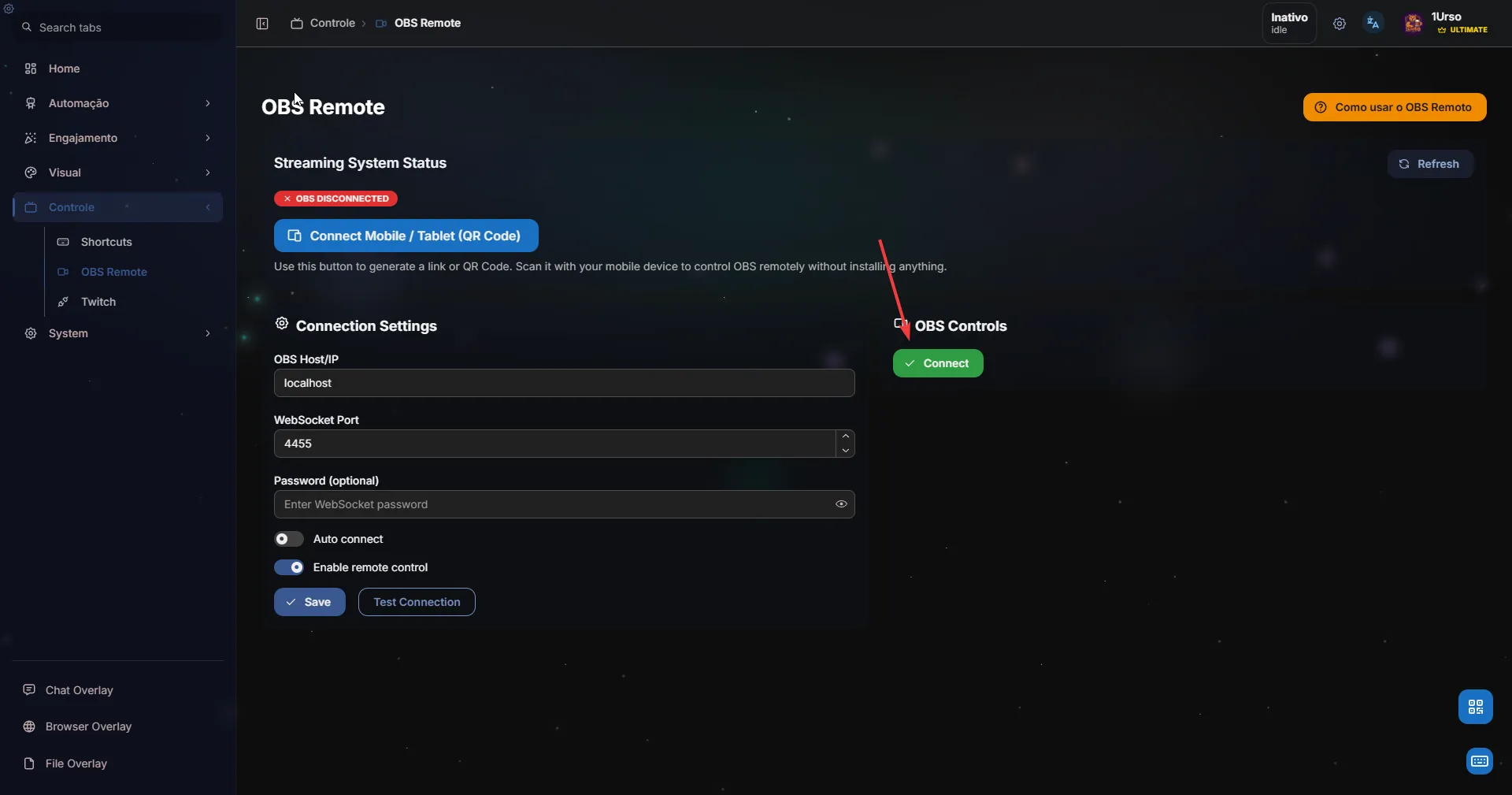
After filling in the data, click Connect.
-
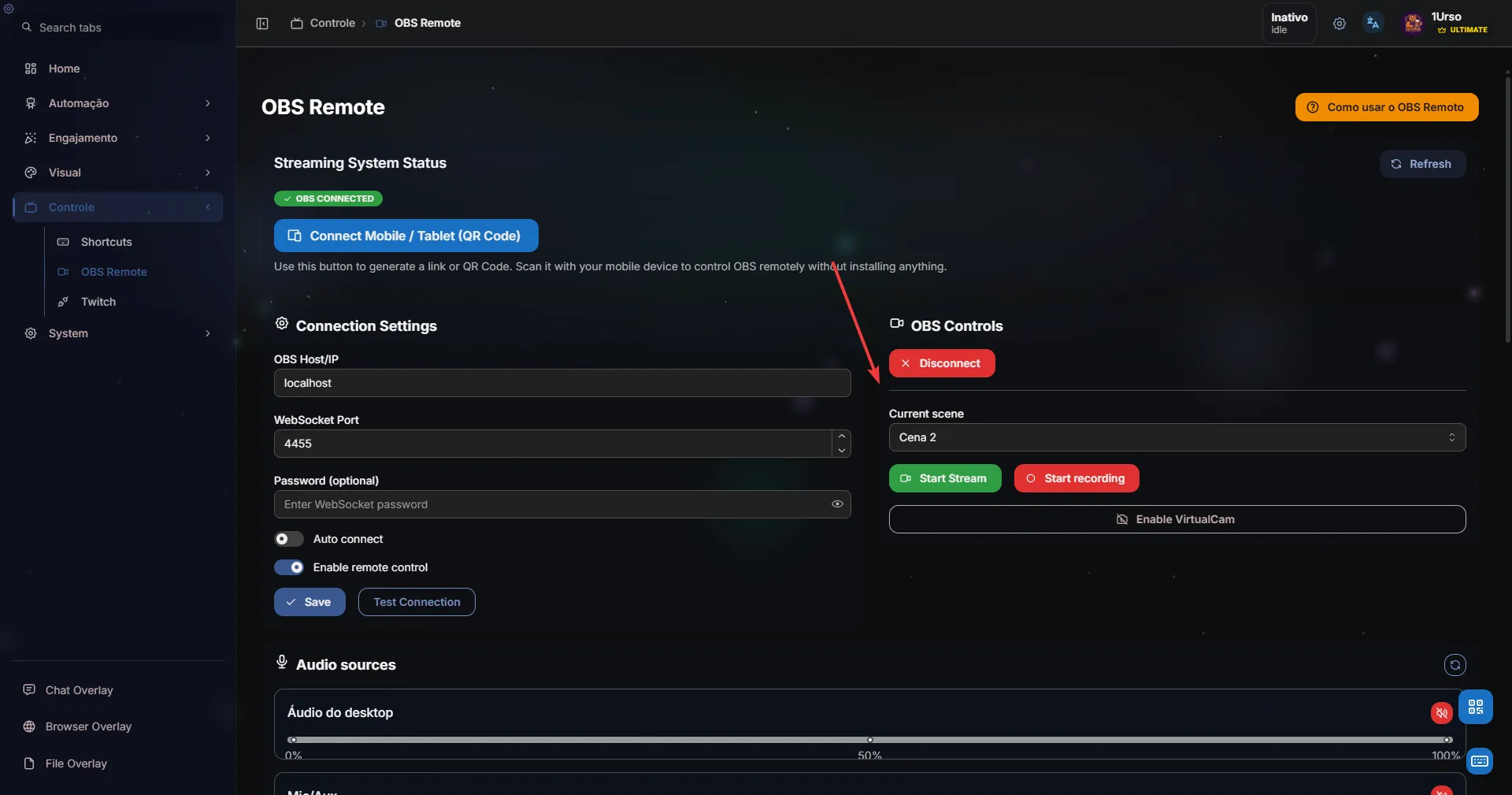
Wait for the connection to be established. The button will change to Disconnect, indicating success.
-
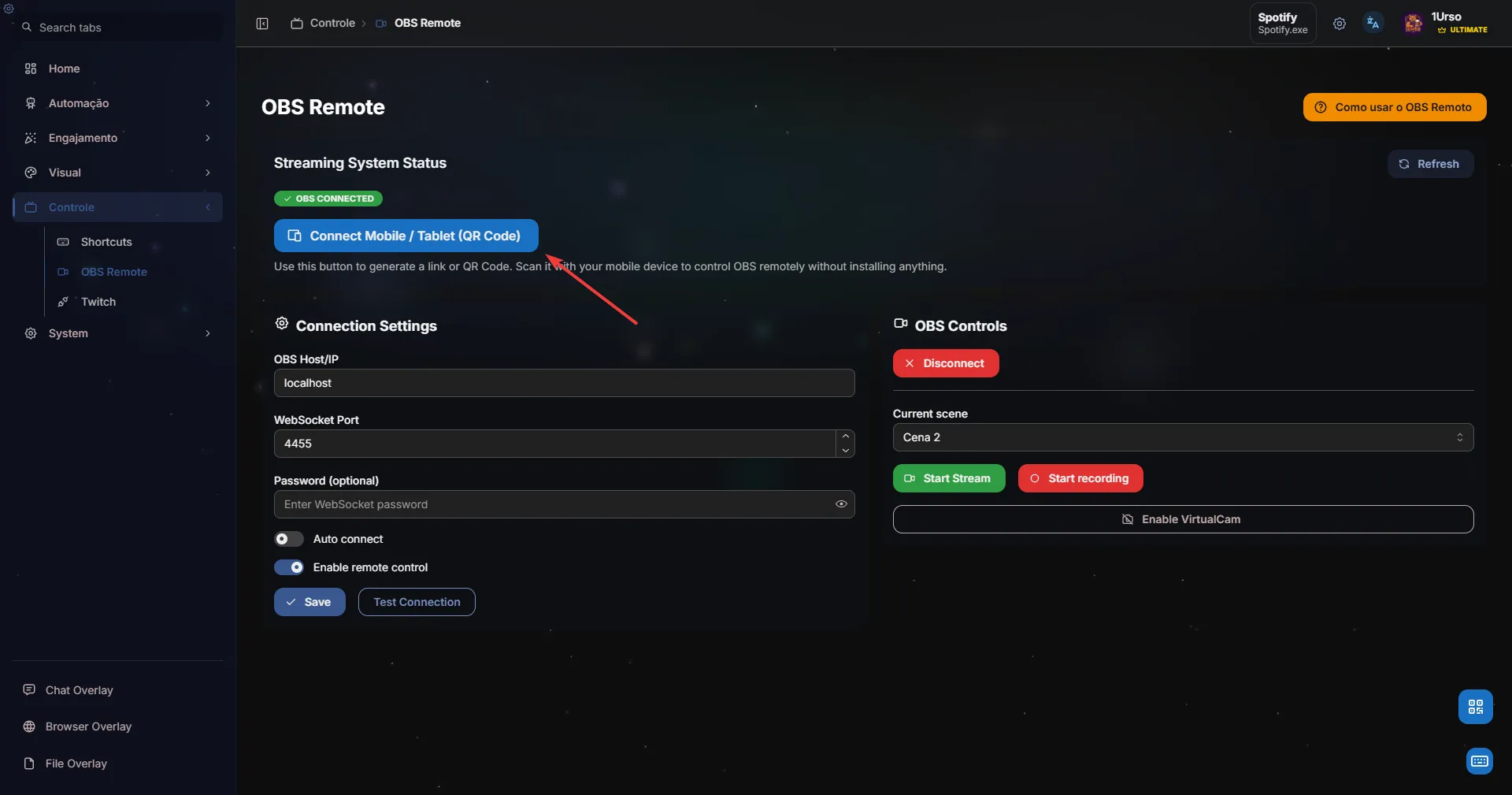
Once connected, click the blue button indicated in the image to view the IP and Remote Access QR Code.
-
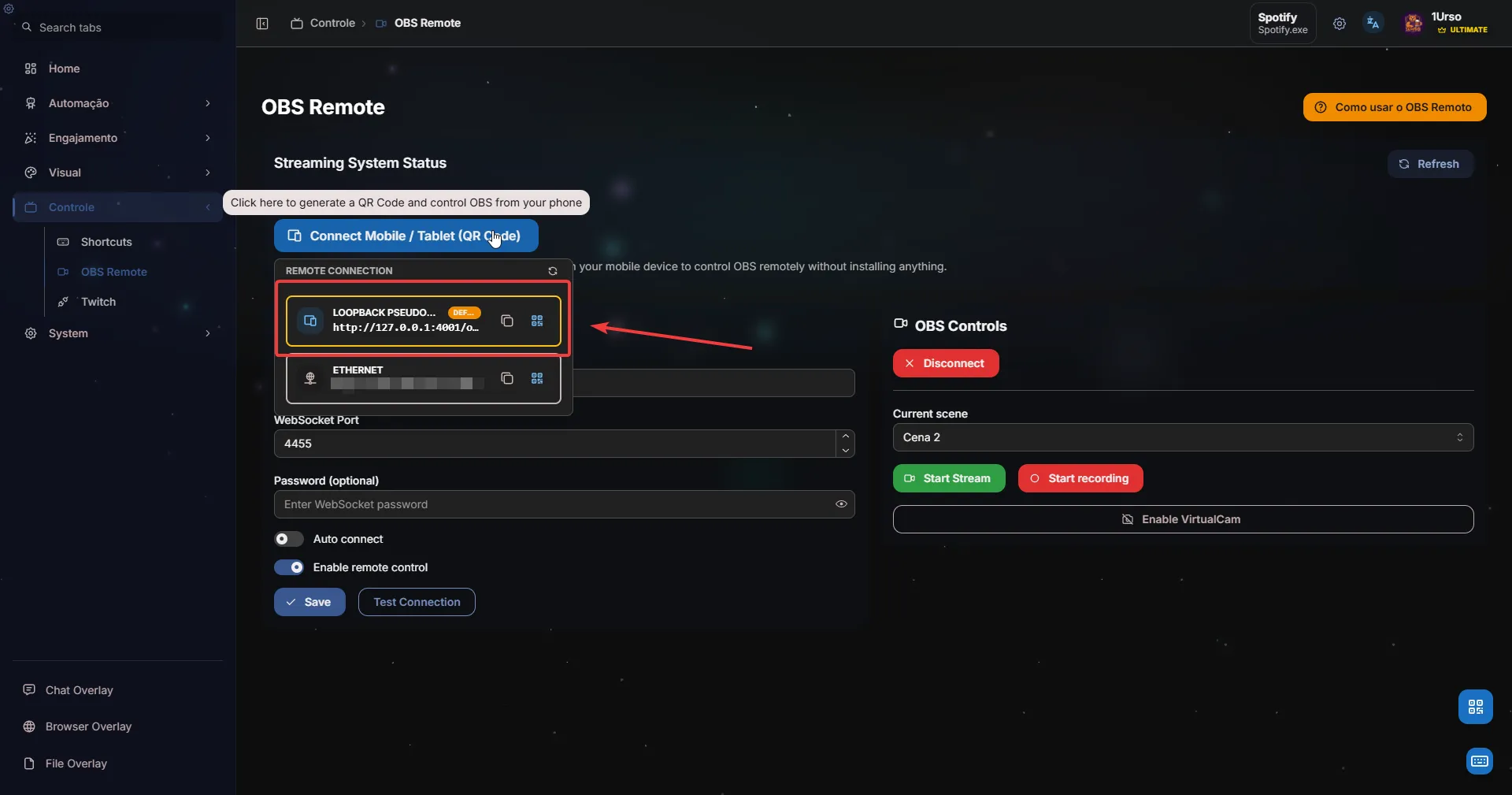
A window will display the IP address and QR Code for connection.
-
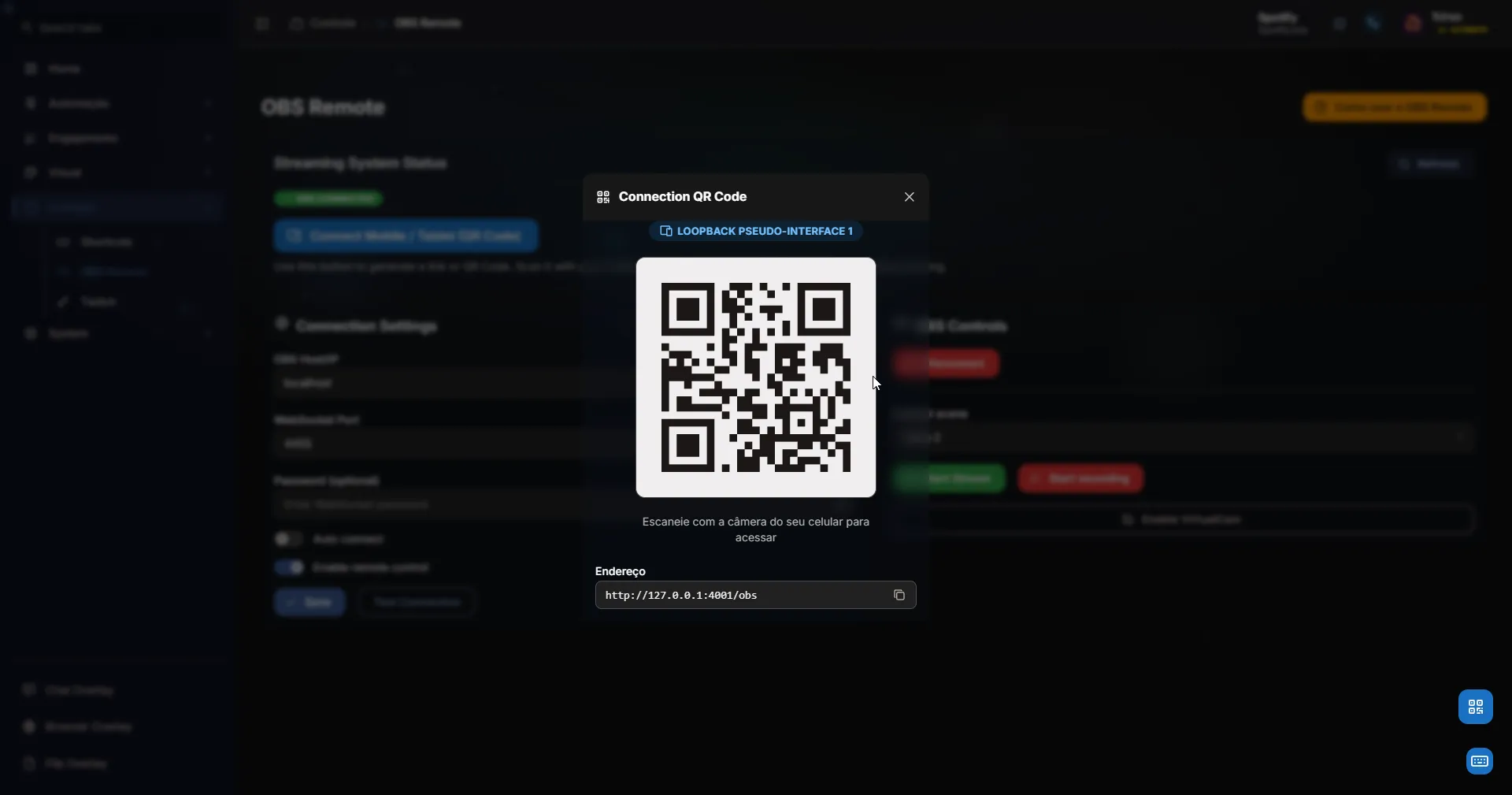
Scan the QR Code with your phone or tablet camera, or enter the IP address in the device’s browser.
-
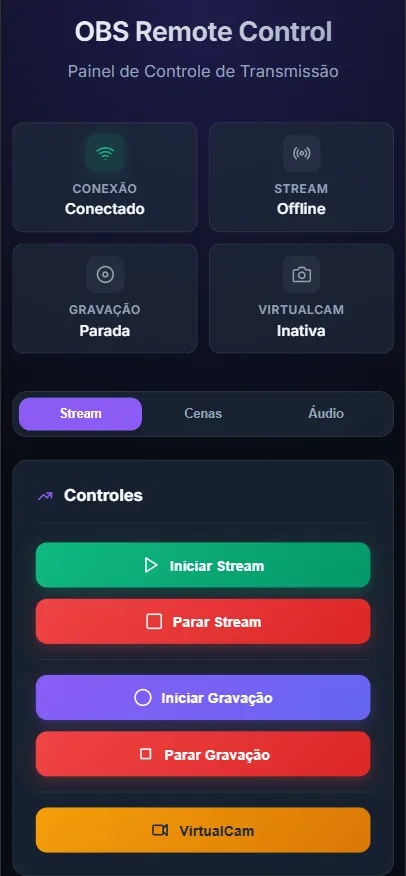
The control interface will load on your device. You can now use scene and source controls.
-
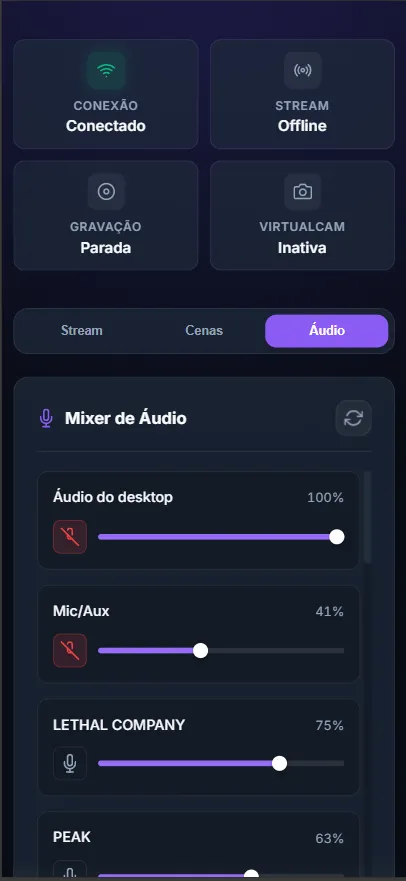
Manage audio and other properties directly from your phone.
-
Now you have full control of your OBS in the palm of your hand!